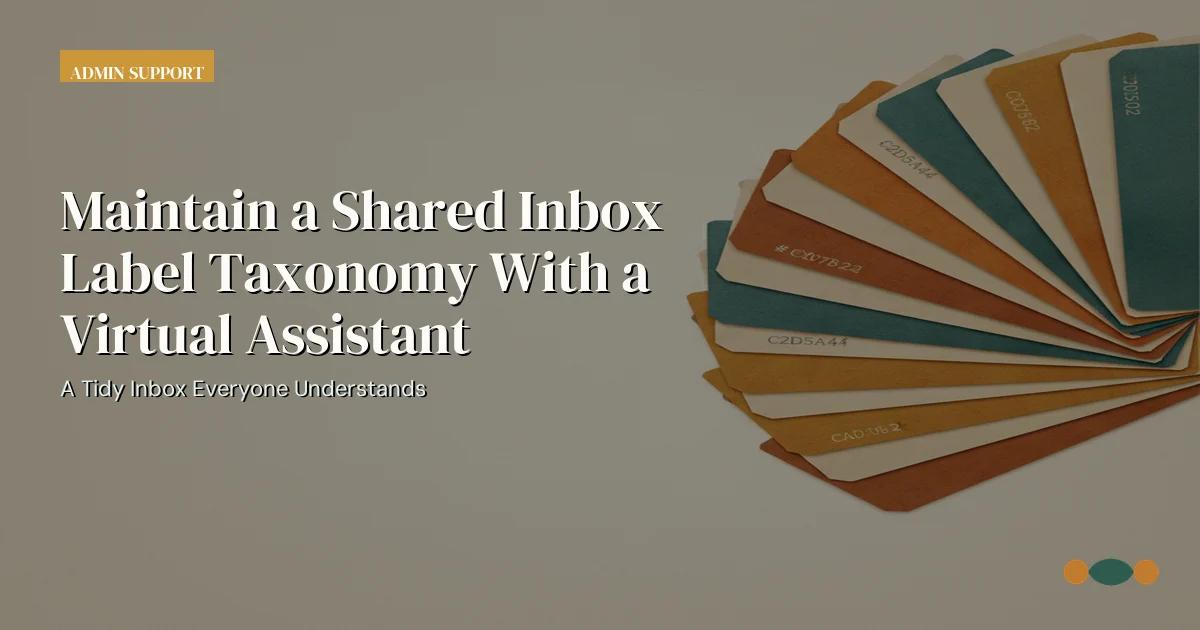
A shared inbox starts as a helpful way to see team correspondence in one place. Six months later it usually contains forty labels, three spellings of the same customer name, and a folder called “misc” that nobody opens. The problem is rarely the email platform. It is that nobody owns the vocabulary. A virtual assistant can maintain the taxonomy, but only when the business defines what each label means and who may change it.
Why shared inbox labels drift
Labels are cheap to create and expensive to rationalize. One person adds “Urgent” during a busy week. Another adds “Priority.” A third uses “VIP” for a customer who is not actually a VIP. New team members copy the examples they can see, so an accidental label can become the standard within a month.
The drift is not only cosmetic. Routing rules, reporting, and response targets often depend on labels. If “Billing” means both an invoice question and a payment failure, the finance queue receives cases it cannot resolve. If a retired label remains in use, dashboards silently omit work. The assistant needs a controlled list and a way to detect unauthorized variants.
Write a label contract before cleaning the inbox
Create a one-page register with four columns: label name, plain-language definition, examples, and the team or workflow that owns it. Add a fifth column for the expected action, such as “route to billing within one business day.” A definition should let two people classify the same message the same way. “Customer success” is too broad; “renewal question from an active customer” is testable.
Distinguish topic labels from status labels. A message can be about “Invoices” while its status is “Waiting on customer.” Mixing the two makes both reports unreliable. Also define reserved labels that only a manager may apply, such as “Legal hold” or “Executive escalation.” The assistant can propose a label, apply approved topic labels, and route exceptions, but should not invent a reserved status.
Record the owner for each label, the effective date of its definition, and the last review date. Version the register in the same workspace as the inbox rules.
Run the cleanup in a fixed sequence
Start with an export of current labels and counts. Identify labels with zero messages, near-duplicate names, inconsistent capitalization, and definitions that no longer match the business. Group the candidates into three buckets: keep, merge, and retire. The assistant prepares the evidence, but the inbox owner approves each merge because it affects routing and history.
Merge one family at a time. Move messages, update rules, then archive the old label. Check saved searches, templates, and integrations that may reference the old name. A label can disappear from the sidebar while still being used by an automation, which creates invisible exceptions. After the change, send a short note to the team with the new definition and two examples.
Do not delete labels during peak volume. Schedule cleanup in a low-traffic window and keep a rollback note listing the old label, new label, and approvals.
Make maintenance a small recurring task
A fifteen-minute weekly pass is more effective than an annual overhaul. The assistant reviews new labels created since the last pass, messages with no label, messages with two conflicting topic labels, and labels used outside their definition. Each finding goes into a short exception list with a link to the message and the question for the owner.
Use a sampling rule rather than reading everything. For example, inspect every new label, twenty recently labeled messages, and every message in a high-risk category. Compare the assistant’s label with the written definition, not with personal preference. When the owner disagrees, update the definition or the example so the next decision is clearer.
Track four measures: unlabeled messages, duplicate or near-duplicate labels, relabel rate after review, and time to route. A rising relabel rate can mean the taxonomy is stale, the team is rushing, or the definitions are ambiguous.
Keep access and privacy boundaries visible
A shared inbox often contains contracts, customer complaints, payroll questions, and personal information. The assistant should use a named account, not a shared password, and should see only the mailboxes required for the assigned queue. Restricted labels do not provide security by themselves; permissions and retention rules do.
Define where sensitive attachments go. A label called “HR” is not a secure storage location. If a message contains medical information, payment data, or identity documents, the assistant should follow the approved handling instruction, avoid copying the content into chat, and route the item to the correct owner. The label taxonomy should include a “do not forward” instruction where the business needs one.
Review access monthly and after any role change. Remove departed staff from inbox rules and delegated mailboxes. An assistant who can see everything “just in case” creates more risk than value.
Pilot the taxonomy with real messages
Choose one queue and two weeks of messages. Ask the assistant to classify a sample using the register, then have the owner review the sample independently. Compare disagreements by definition, not by seniority. If a definition produces repeated confusion, rewrite it and test again before rolling it out to other queues.
Document the final workflow in a short operating note: where the register lives, how to propose a change, who approves merges, how to handle unlabeled mail, and what to do when a sender uses an old label in the subject line. Include screenshots of the correct naming pattern and one example of a rejected variant.
Handoffs should include the current register version and a list of open exceptions.
Source
The operational guidance above is informed by the FTC guidance on protecting personal information, reviewed on October 22, 2026. It is general process guidance, not legal, tax, employment, or compliance advice. Apply requirements with the qualified owner for your business and jurisdiction.
Frequently asked questions
Can a virtual assistant create new inbox labels?
The assistant can draft a proposal with a definition, examples, and the affected queue. A named inbox owner should approve new labels and any merge that changes routing or reporting.
How many labels are too many?
There is no universal number. If team members cannot predict which label applies, or if reports require several labels to describe one message, the taxonomy is too complex for its purpose.
Should labels replace folders?
Use whichever model the platform and team can maintain. The control question is the same: every category needs a definition, an owner, and a review rule. Avoid maintaining two parallel systems for the same messages.
What is the best first cleanup step?
Export label usage and identify duplicates, unused labels, and labels without a written definition. Get owner approval for the keep, merge, and retire list before changing live routing.
Next step
If this work keeps landing on your desk, review AssistantStaffing's email management virtual assistant service and the related guide on delegating an inbox without losing control. Bring a current procedure and two anonymized examples to a free role consultation; concrete cases make the scope, access, and review boundaries easier to define.